
1. Access the Employee Module #
-
Log in to your Payroll System (Admin or HR role).
-
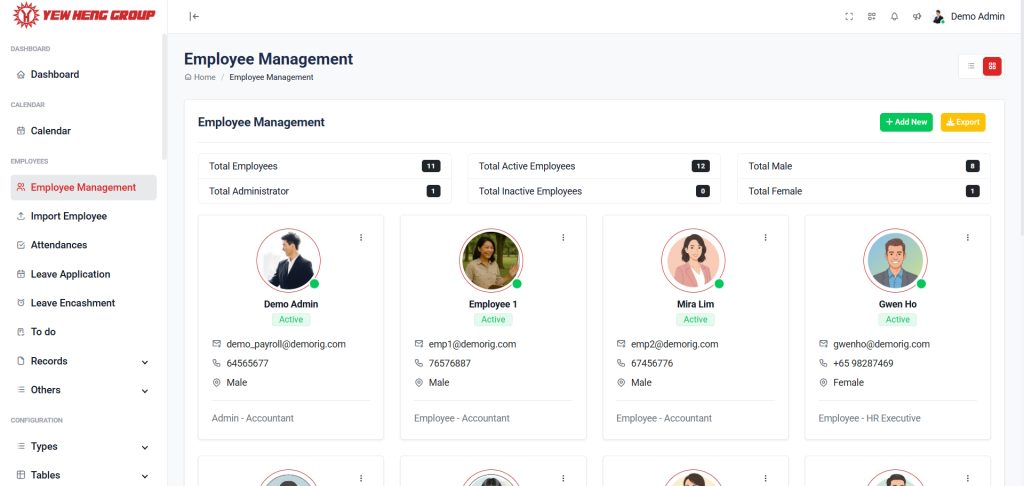
From the left menu, go to Employment Management.
-
You will see the Employee List showing all active, inactive employees
2. Add a New Employee #
-
Click Add Employee (usually a + button or top-right button).
-
Fill in the employee’s Basic Information:
-
Full Name
-
NRIC / FIN / Passport
-
Gender
-
Date of Birth
-
Nationality
-
Contact Number
-
Email
-
-
Enter Employment Details:
-
Job Title / Position
-
Department
-
Work Location / Branch
-
Start Date
-
Employment Type (Full-time / Part-time / Contract / Freelancer)
-
Work Pass Type (if applicable)
-
-
Enter Payroll Details:
-
Salary Type (Monthly / Hourly / Daily)
-
Basic Salary Amount
-
Allowances (Transport, Meal, Shift, etc.)
-
Deductions (if any)
-
CPF/MBF Eligibility
-
Bank Details for Salary Payment
-
-
Upload any supporting documents:
-
ID / Passport
-
Employment Contract
-
Work Permit / S Pass / E Pass
-
-
Click Save.
The new employee will now appear in the Employee List.
3. Edit Employee Information #
-
Go to Employees Management
-
Find the employee using Search or Filters.
-
Click Edit.
-
Update any details:
-
Personal Details
-
Job & Department
-
Salary / Allowances / Deductions
-
Bank Info
-
Work Pass
-
-
Click Save Changes.
4. Upload or Update Employee Documents #
-
Open the employee profile.
-
Go to the Documents tab.
-
Click Upload Document.
-
Select document type (ID / Contract / Pass / Certificate).
-
Upload file → Save.